It's been almost an year that I've started working as a software engineer. I started my career in a well known open source company called WSO2 on 2nd of April 2009. Today I'm celebrating my 1st anniversary at WSO2.
When looking back the past year, I'm really happy about the work experience I got here in WSO2. It s a great place to start your career. One good thing about WSO2 is you will never stop learning. Everyday at office is a challenge. It is not you are doing the same thing over and over again.
There are lot of fun activities you can attend too.. Basketball, carom, and there are lot of other fun events you can participate when ever you feel bored.
Thanks alot WSO2 for all the things that taught me during last year !!!
Thursday, April 1, 2010

Monday, March 29, 2010
The Lost Symbol
I was able to finish reading another great book from Dan Brown called "The Lost Symbol" today. It took a great time for me to read due to other workload I have to do. There were lot of times, that I felt of giving up reading that. But after reading that, I felt so happy and I recommend anyone to read that great book.
The lost symbol of mankind is the god which is same as human mind which is the universal constant for man. It is described in many different ways in different cultures and religions but all has shared the same thing.
I will wined up my post quoting something from the book..
TIME IS A RIVER.. AND BOOKS ARE BOATS. MANY VOLUMES START DOWN THAT STREAM, ONLY TO BE WRECKED AND LOST BEYOND RECALL IN ITS SANDS. ONLY A FEW, A VERY FEW, ENDURE THE TESTINGS OF TIME AND LIVE TO BLESS THE AGES FOLLOWING.
Hope someone may fascinated to read the book after reading this :)
The lost symbol of mankind is the god which is same as human mind which is the universal constant for man. It is described in many different ways in different cultures and religions but all has shared the same thing.
I will wined up my post quoting something from the book..
TIME IS A RIVER.. AND BOOKS ARE BOATS. MANY VOLUMES START DOWN THAT STREAM, ONLY TO BE WRECKED AND LOST BEYOND RECALL IN ITS SANDS. ONLY A FEW, A VERY FEW, ENDURE THE TESTINGS OF TIME AND LIVE TO BLESS THE AGES FOLLOWING.
Hope someone may fascinated to read the book after reading this :)
Saturday, March 27, 2010
IELTS
Today I did my IELTS examination. I did not have time to attend to a course, so what I did was self study. After facing the exam, I felt that even if I attend the classes, thing may not change that much. I only had the reference book borrowed by one of my friend and other resources in the internet.
I'm writing this blog to give some tips that I learnt after facing the exam.
As you may already know, IELTS exam consists of four modules as listening, reading, writing and speaking. In my opinion, hardest parts are listening and reading, so you better prepare more for those parts.
There are plenty of videos in youtube which give u many tips for IELTS. My advice is to do as much as practice tests. Here are some useful links where you can find some practice tests for each module.
http://www.examenglish.com/
http://www.englishonline.org.cn/en/learners/ielts-preparation/reading
http://www.englishonline.org.cn/en/learners/ielts-preparation/listening
http://www.englishonline.org.cn/en/learners/ielts-preparation/mock-papers
http://www.canadavisa.com/ielts/free-practice-tests.html
so good luck to all !!!
I'm writing this blog to give some tips that I learnt after facing the exam.
As you may already know, IELTS exam consists of four modules as listening, reading, writing and speaking. In my opinion, hardest parts are listening and reading, so you better prepare more for those parts.
There are plenty of videos in youtube which give u many tips for IELTS. My advice is to do as much as practice tests. Here are some useful links where you can find some practice tests for each module.
http://www.examenglish.com/
http://www.englishonline.org.cn/en/learners/ielts-preparation/reading
http://www.englishonline.org.cn/en/learners/ielts-preparation/listening
http://www.englishonline.org.cn/en/learners/ielts-preparation/mock-papers
http://www.canadavisa.com/ielts/free-practice-tests.html
so good luck to all !!!
Tuesday, December 22, 2009
WSO2 Enterprise Service Bus Eclipse Tools v1.0.0-beta
WSO2 Enterprise Service Bus Eclipse Tools v1.0.0-beta was released 18th December 2009. This tool provides you the ability to create and import sequences, endpoints and proxy services and you can publish created sequences, endpoints and proxy services in to WSO2 ESB server which runs inside eclipse.
For more information go to WSO2 Enterprise Service Bus Eclipse Tools v1.0.0-beta product page at the oxygen tank.
For more information go to WSO2 Enterprise Service Bus Eclipse Tools v1.0.0-beta product page at the oxygen tank.
Tuesday, September 8, 2009
Developing a simple Bpel project with eclipse Bpel Designer Plugin and WSO2 BPS Bpel Exporter Plugin
This tutorial is written for eclipse 3.5 (Eclipse Galileo) and eclipse BPEL Designer plugin v. 0.4.0.
3.2 Deploy BPEL project in Apache ODE
Contents
- Introduction
- Tutorial scenario
- Getting Started
- Write a simple helloworld application using eclipse BPEL Designer plugin
- Deploy helloworld bpel in apache ODE
- Eclipse BPS BPEL exporter plugin
- Deploy in WSO2 BPS
1. Introduction
Business Process Execution Language (BPEL), is an OASIS standard executable language for specifying interactions with Web Services. Processes in Business Process Execution Language export and import information by using Web Service interfaces exclusively. BPEL is an XML based Orchestration language. In an orchestration language, message exchange sequences are controlled by the orchestration designer.
WSO2 Business Process Server (WSO2 BPS) and Apache Orchestration Director Engine(ODE) are two BPEL compliant business process executable work-flow engines, which support composition of Web services by orchestrating service interactions.
Eclipse BPS BPEL Exporter plugin is to export a bpel project that was created by Eclipse BPEL Designer plugin. Artifact which is created from exporter plugin can be deployed in WSO2 BPS or in ODE.
2. Tutorial Scenario
Assume you want to create a BPEL process using eclipse BPEL designer and deploy it in ODE or WSO2 BPS. This tutorial covers developing, deploying simple helloworld BPEL application with the use of Eclipse BPEL designer and Eclipse BPS BPEL Exporter Plugin.
3. Getting StartedWe assume that you have already installed following applications in your machine
- Java Development Kit 1.5 or above
- Eclipse SDK 3.5 (Eclipse Galileo)
- Apache Tomcat
- Apache ODE
- WSO2 BPS
- BPEL Designer plugin
- WSO2 BPS BPEL Exporter
3.1 Write a simple helloworld application using eclipse BPEL Designer plugin
Now lets focus on how to develop a simple helloworld application using Eclipse Bpel designer plugin.
After successfully installing eclipse BPEL Designer Plugin you will have the option of selecting BPEL project as you select other types of projects in eclipse environment.
Step 1:
Go to new → other → Bpel 2.0 → Bpel Project and then click next. Give the Project Name as HelloWorld, Target Runtime as Apache Ode 1.x Runtime. If it is not already in the drop-down list, click Modify under Configuration and in the Runtimes tab you can select Apache Ode 1.x Runtime. In both cases, select Bpel 2.0 facet under Project Facet of the wizard you get when you click Modify button under Configuration and click ok. Then click finish.
Step 2:
Now you have an empty BPEL project as “HelloWorld” in your workspace. Right click on the project, select new → other → BPEL 2.0 → New BPEL Process File and click next. Fill the Process Details giving BPEL Process Name as “helloworld”, Namespace as http:// helloworld and select the Synchronous BPEL Process from Template and click next. Select the project that we just created (HelloWorld) and click finish.
Your helloworld bpel process will be as follows.

And the workspace will be as follows.

When you select each UI component, you are able to view properties of each component by Properties window. If you can not find properties window, go to Window → Show View → Properties.
Step 3:
Click on recieveInput and view at the Properties window and leave them as before.
Step 4:
Add an Assign activity in between Receive and Reply. Expand the Palette window and click Actions option and select the Assign action. Drag and drop it in between the Receive and Reply, as shown below.

Step 5:
In the Assign properties window select Details tab and click New. Then in the From attribute select Variable and 'input-paylaod-input:string'. At the To attribute also select Variable and 'output-payload-result:string' as showed in the image. Save the process.

3.1.1 Binding the Process
Step 1:
Now open the WSDL file in the Design view and add a New Service and a New Binding by right click on the design view. Select the Binding element in the properties window and in the General tab click Generate Binding Contents. Then you will see Binding Wizard will appear. At the Binding Details page select the Port Type as helloworldport and Protocol as SOAP and SOAP Binding Option as document literal. Give the Binding Name as helloworldbinding.
Step 2:
Then select the New Service in the properties window and change the name of the service as helloworldService. Then select the NewPort and at the properties window give the name as helloworldPort, select the helloworldbinding for the Binding from the Specify Binding window. For the Address field type “http://localhost:8080/ode/processes/helloworld” and select Protocol as SOAP. Now the design view of the WSDL file will be as follows.

3.1.2 Designing Deployment Descriptor
Step 1:
To deploy the process in ODE, you have to create a deployment descriptor file. For that right click on the HelloWorld bpel project and go to new → other → BPEL 2.0 → Apache ODE Deployment Descriptor and click next. In the pop up wizard, check whether the correct BPEL project (i.e. HelloWorld) is selected and then click finish.
Step 2:
Open the deployment descriptor file (deploy.xml) in the editor and at the Inbound Interfaces section under the Associated Port tab select helloworldport from the drop down list that will appear. Just click on the other tabs and you will see necessary details are filled automatically. Now deploy.xml will be as follows.

Now your process is ready to be deployed in ODE. To deploy it in WSO2 BPS, you have to make it a zip file. For that Eclipse BPS BPEL plugin will be helpful.
3.2 Deploy BPEL project in Apache ODE
Go to Tomcat webapps directory. There you will find a directory called “ode”. If you can not find that directory, you have to run tomcat server at least for once, after copying ode.war file in to webapps directory of tomcat. Go to tomcat/webapps/ode/WEB-INF/processes directory and create a folder copying .bpel file (i.e. helloworld.bpel), .wsdl file (i.e. helloworldArtifacts.wsdl) and ODE deployment descriptor file (i.e. deploy.xml) then run tomcat server if the server is not already in started state. When you start ODE (http://localhost:8080/ode) you will see extra file with the extension .deployed will be created in tomcat/webapps/ode/WEB-INF/processes directory. In the browser go to processes link of Apache ODE homepage and you will see helloworld process has been deployed (see below image).
 4. Eclipse BPS BPEL Exporter Plugin
In this tutorial we assume you have already installed Eclipse BPS BPEL Exporter Plugin in your eclipse.
Step 1:
Import the created BPEL project in to the workspace if your workspace does not include needed BPEL project already. This can be done by clicking file → import → General → Existing Projects into Workspace and click next. Select the directory of BPEL project and click finish.
Step 2:
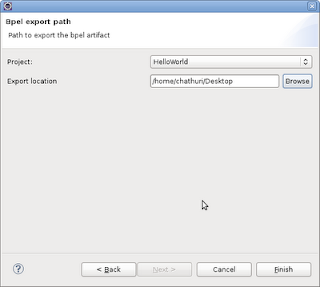
Right click on the BPEL project and select Export. In the Export window select WSO2 BPS Bpel Artifact under WSO2 Exporter and click next.

Select the BPEL project and location where you want to save the created artifact and click finish.

Now you will have the BPEL artifact that can be deployed in WSO2 BPS.
4.1 Deploy BPEL artifact in WSO2 BPS
Run WSO2 BPS by going to wso2bps-1.0.1/bin in the command prompt and run wso2server.sh / wso2server.bat. Go to https://localhost:9443/carbon and log as admin. Click Add BPEL under Business Processes and browse for the path of the BPEL artifact you just created from plugin and click upload. If there are no errors, you will get a message saying “upload successful”. From the services list, you can check whether the uploaded artifact is there.
You can try the service by clickng “Try this service” option.
Saturday, October 25, 2008
MOINC (Mora Open Infrastructure for Network Computing)
MOINC (www.moinc.org) is our final year project. It is a project which will use the processing power of idle computers to do some task. MOINC consists of three main modules: server core, server manager and MOINC agent. I'm working with the Server Manager module. Server management module is responsible for managing data of the system. Other modules do not do any data saving. For the resource management purpose we use open source tool WSO2 Registry.
Responsibilities of Server Manager
User Management
Points Management
History Data Management
Handling Security
Wednesday, August 27, 2008
Sad Story of Dylan
You may wonder what is "Dylan". Dylan is a modern programing language and I'm sure there are plenty of people who may not even heard there is a language called Dylan. It is mainly because Dylan cannot be considered as a successful language and it is hardly used in the current context. Most interestingly it has a kind of sad history.
Dylan was initially developed as a project of Apple. Apple wanted to develop a better programing language for their Apple Newton PDA s. Developing Dylan was initiated in order to achieve that goal. But the project became a failure since it took more time than they expected. Programing was done using C in Apple PDA s instead of Dylan and project was terminated. Then Dylan was developed for Macintosh computers and released Apple Dylan product. Unfortunately that was also became a failure since the developers unable to give any usable product and as a result group was dismantled from Apple.
After the separation from Apple, group joined with Harlequin, famous software company around 1990s and was able to release working compiler and development environment for windows platform. But with the time Harlequin was also split and Dylan was implemented for open source community with some added new features. Open source product of Dylan is called as "Open Dylan"
This is my first blog and all the comments are most welcome :)
Dylan was initially developed as a project of Apple. Apple wanted to develop a better programing language for their Apple Newton PDA s. Developing Dylan was initiated in order to achieve that goal. But the project became a failure since it took more time than they expected. Programing was done using C in Apple PDA s instead of Dylan and project was terminated. Then Dylan was developed for Macintosh computers and released Apple Dylan product. Unfortunately that was also became a failure since the developers unable to give any usable product and as a result group was dismantled from Apple.
After the separation from Apple, group joined with Harlequin, famous software company around 1990s and was able to release working compiler and development environment for windows platform. But with the time Harlequin was also split and Dylan was implemented for open source community with some added new features. Open source product of Dylan is called as "Open Dylan"
This is my first blog and all the comments are most welcome :)
Subscribe to:
Posts (Atom)